- ShopDot Pet
- Posts
- How to Add Your ShopDot Pet Storefront to Your Social Channels
How to Add Your ShopDot Pet Storefront to Your Social Channels
Make it easy for clients to shop what you recommend
In today’s pet-focused world, your clients discover you everywhere—Instagram reels, TikTok videos, Facebook groups, LinkedIn posts, and even YouTube tutorials. The more places your ShopDot Pet storefront appears, the easier it is for customers to access your curated products.
You can now find your personalized storefront QR code under Home → Marketing Tools in your portal. When your storefront link or QR code is easy to find, it drives more clicks, more engagement, and ultimately, more sales for your pet business. Whether you're a groomer, trainer, sitter, or any pet professional, placing your storefront front-and-center helps clients shop the products you recommend.
Below is your step-by-step guide to adding your ShopDot Pet storefront across the five major social platforms.
Where to Add Your Storefront URL
Your bio link
Stories, Story Highlights, Link Stickers
How to Add Your Storefront URL to your Profile
Go to your Instagram Profile.
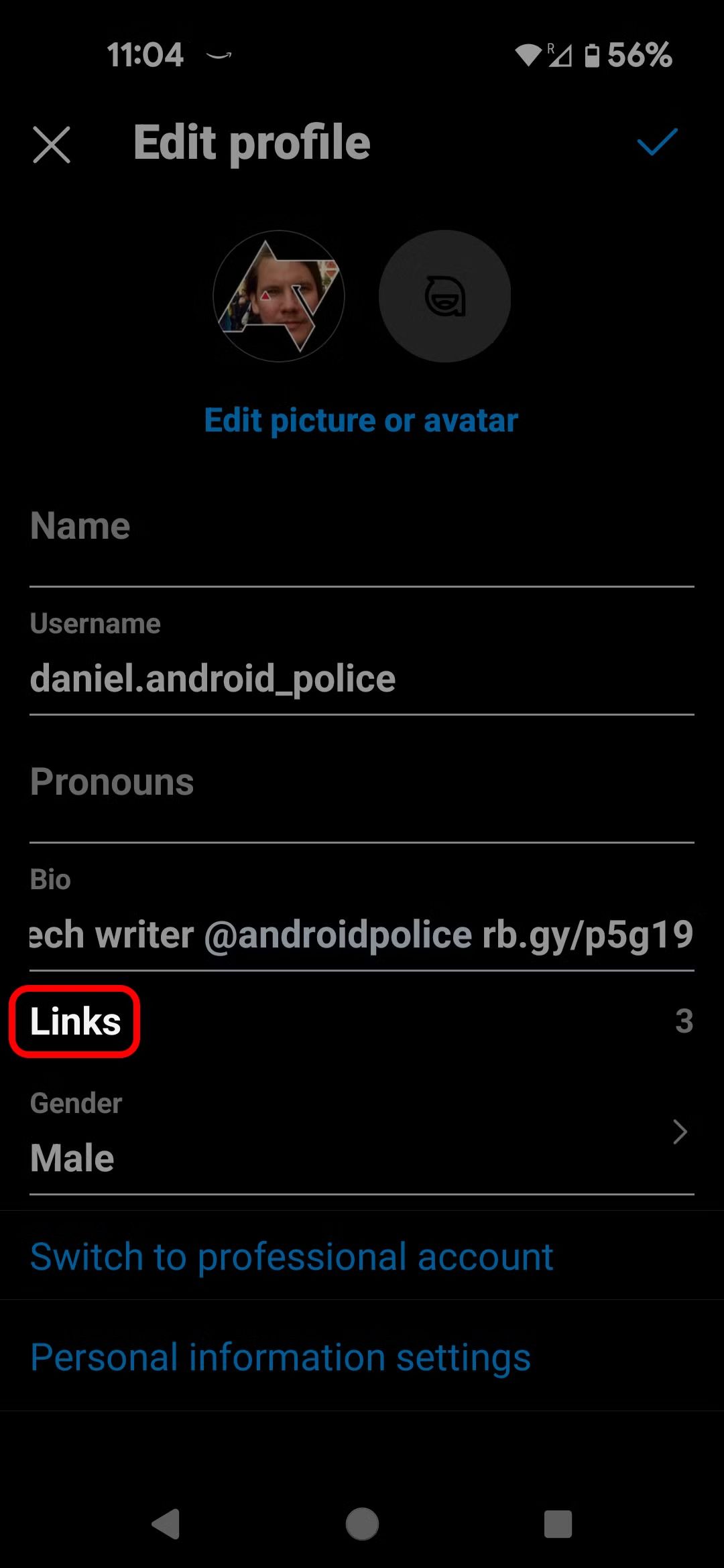
Tap Edit Profile.
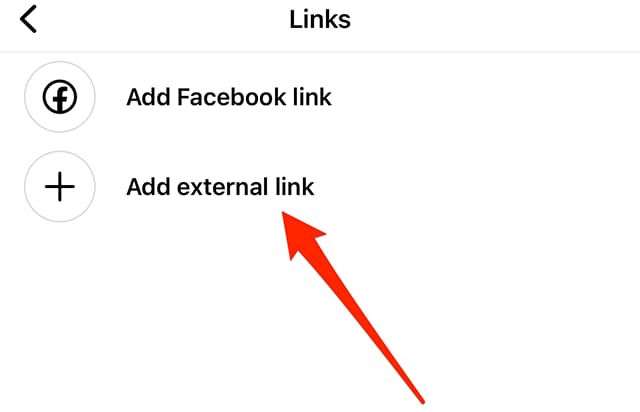
Under Links, choose Add external link.
Paste your ShopDot storefront URL.
Rename it to something clear like “Shop My Pet Picks”.
How to Use Your QR Code
Create a pinned post featuring your QR code and a short explanation:
“Shop my curated pet essentials—scan the code!”
Where to Add Your Storefront URL
About section
Website field on your Business Page
Pinned post
Call-to-Action button (“Shop Now”)
How to Add Your Storefront URL (2 Ways)
Go to your Facebook Page.
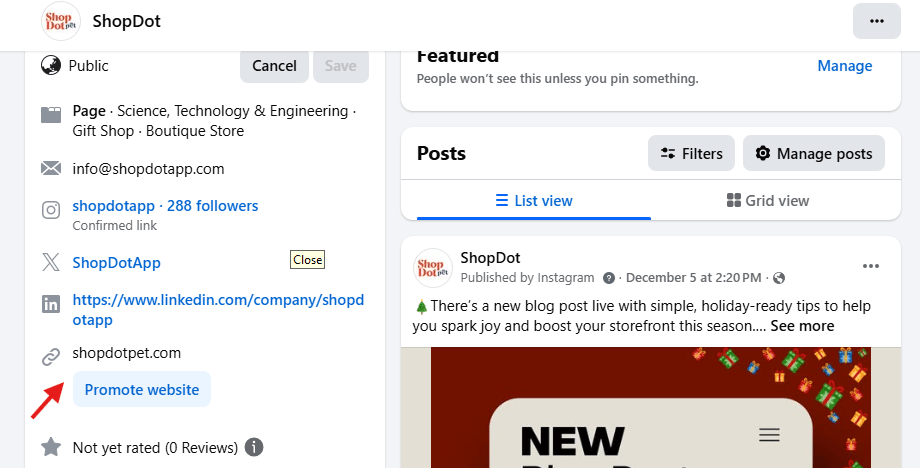
Open About Contact and Basic Info → Websites and social links
Add your ShopDot storefront URL under Website.
Go back to your page and click Edit Action Button.
Choose Shop Now and link your storefront.
How to Use Your QR Code
Create a pinned post featuring your QR code and a short explanation:
“Shop my curated pet essentials—scan the code!”
Where to Add Your Storefront URL
Your Contact Info section
Your Featured section
Under your About or Experience descriptions
In posts when discussing products or pet care
How to Add Your Storefront URL
Go to your LinkedIn Profile.
Click the pencil icon to edit.
Scroll to Edit Contact Info and Website in the Contact section.
Paste your ShopDot storefront URL and label it (e.g., “Pet Products I Recommend”).
Add a Featured link with a thumbnail for more visibility.
How to Use Your QR Code
Include the QR code image in carousel posts or educational content, especially if you share pet-care insights.
TikTok
Where to Add Your Storefront URL
Your bio link (TikTok allows website links for Business Accounts)
In your video captions
Via on-screen QR code in your videos
How to Add Your Storefront URL
Switch to a TikTok Business Account (free).
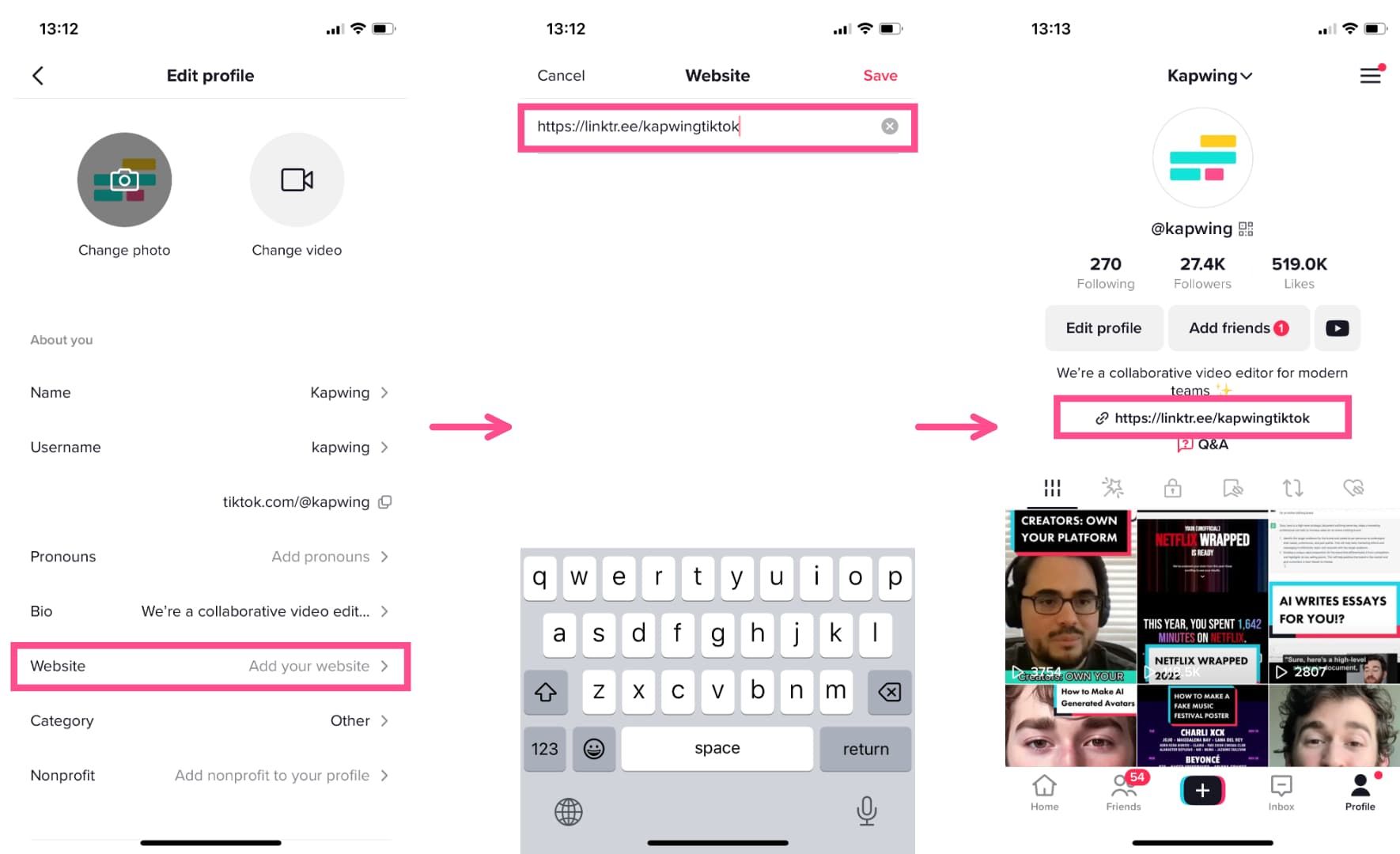
Go to Edit Profile.
Under Website, paste your ShopDot storefront URL.
In your content, verbally or textually guide viewers:
“Link in bio to shop my favorite pet products!”
How to Use Your QR Code
Add the QR code in the corner of your videos using TikTok's editing tools.
Feature it prominently in product-review or unboxing content.
YouTube
Where to Add Your Storefront URL
Your Channel “About” section
Video descriptions
Pinned comment
YouTube Shorts captions
End screen (using a graphic with QR code)
How to Add Your Storefront URL
Go to your YouTube Channel.
Go to your Profile → Customization.
Click Links → Add Link.
Paste your ShopDot storefront URL and title it something clear.
Add your link to every video description with a call to action.
How to Use Your QR Code
Insert your QR code inside your videos or on end screens, especially during product mentions.
Add it to your community posts as an image.
Final Tips for Maximizing Storefront Traffic
Use a consistent call-to-action (CTA)
Examples:
“Shop my trusted pet favorites here.”
“Support my small business by using my ShopDot storefront.”
Place the URL everywhere your audience interacts with you
Email signatures, appointment reminders, booking confirmations, and text outreach are also high-visibility opportunities.